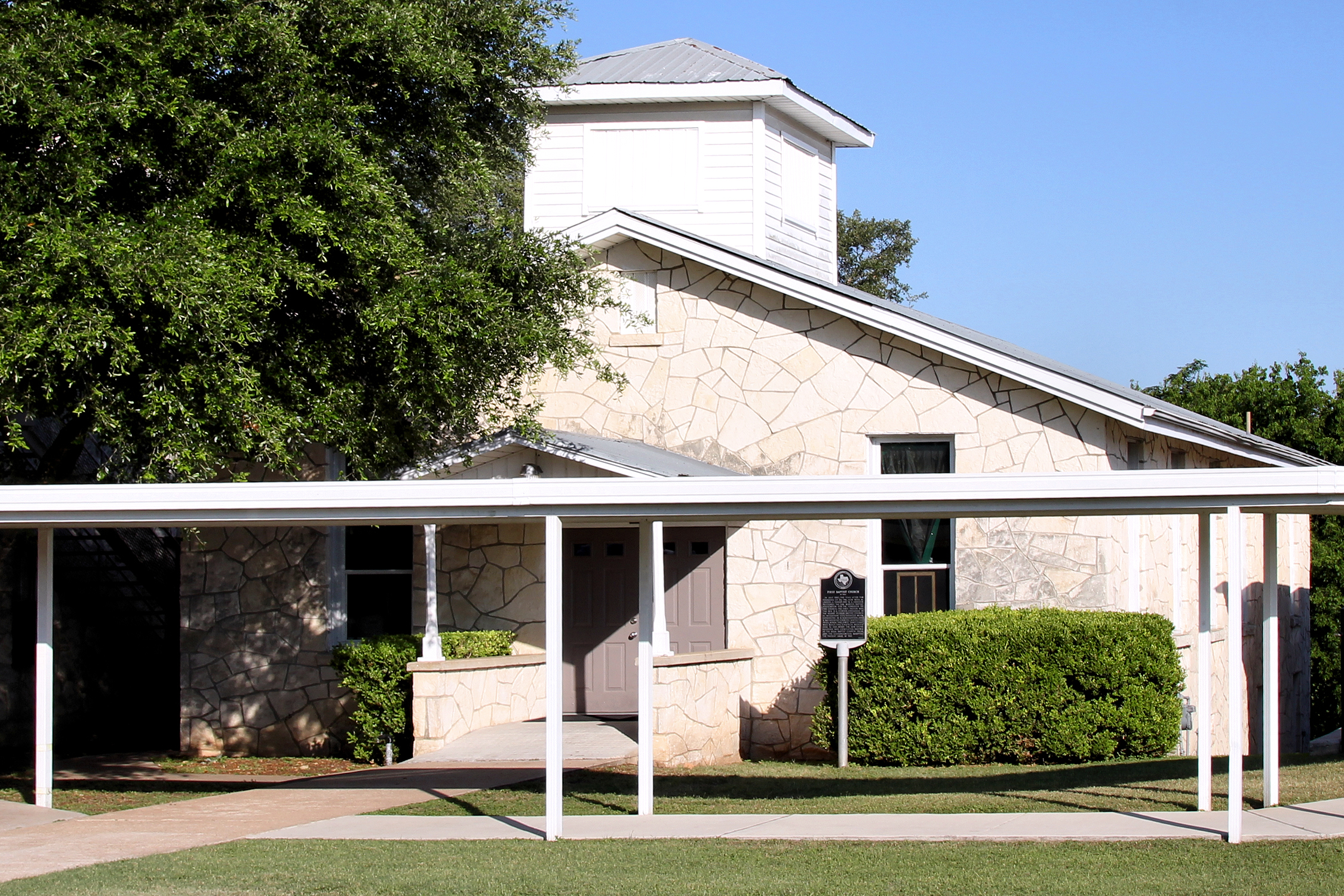
The easiest way to feel comfortable at a church event is to answer the practical questions before you leave home: when does it start, who is it for, do I need to respond, and what should I bring? The Ridgecrest Events Calendar is built to help with exactly that.
By Rowan Ellis | Updated May 20, 2026
If you are planning around work, school, family pickup, or the general unpredictability of normal life, the useful takeaway is simple: start with the Events Calendar, use it to confirm the church’s weekly rhythm, then follow the page’s links to News, Kids, Youth, About Us, or the contact options when a detail is not listed. The calendar is the front door for timing. It is not trying to be a mystery novel.
On the current Ridgecrest site, the Events Calendar works as a clear weekly overview rather than a full RSVP portal. That matters because it tells you how to use the page well: scan for the main time blocks first, look at the event-type sections next, then move to the contact and ministry pages if you need finer detail.

Where to find the Events Calendar and how to scan it fast
Start at /events-calendar. The page is designed for a fast read, so it helps to scan it in the same order each time:
- Read the weekly schedule first. The current page shows Sunday classes at 8:45 a.m., Sunday worship at 10:00 a.m., and Wednesday kids and youth beginning at 6:30 p.m. If you only need the regular rhythm, you may be finished in under a minute.
- Check the event-type sections next. The page breaks out “Family events,” “Student and kids events,” and “Ministry reminders.” Those labels tell you whether you should keep reading or move to a ministry-specific page.
- Use the built-in next links. The calendar page already points you to News for current announcements and Contacts if you need help planning your visit.
- Treat missing details as a sign to verify, not guess. If you do not see a room, check-in instruction, or RSVP note on the calendar page, move to the linked page or contact the church rather than inventing a policy in your head.
The practical point is that the calendar is best used as a starting page. It tells you what is happening and when the regular schedule begins. When a special gathering needs more explanation, the site expects you to keep following the trail.
Understanding the details the page gives you
The current calendar is light on clutter, which is helpful as long as you know what each section is doing. Here is the quickest way to interpret what you see:
| Calendar detail | What it tells you | What to do if you need more |
|---|---|---|
| Date and time | The page currently emphasizes the church’s repeating weekly schedule, including Sunday classes, Sunday worship, and Wednesday ministry times. | If a holiday, fellowship, or special event changes the normal pattern, check News or contact the church before you head out. |
| Audience or age group | Labels like “Family events” and “Student and kids events” tell you whether the item is church-wide or tied to a younger age group. | Use the Kids and Youth pages to confirm the ministry fit if you are planning for children or students. |
| Location | The calendar points you toward the church campus and the Church Map page, but it does not list every room or entrance for every gathering. | If a listing does not name the room or meeting point, use /contacts.html or /contact.php to ask before the event. |
| Check-in or arrival notes | Those may appear on a ministry page or in a current announcement rather than on the overview itself. | If the listing indicates extra arrival time, family check-in, or ministry-specific instructions, build your reminder around that detail. If it does not, ask. |
This is where context matters. The current Events Calendar does not try to answer every possible logistics question in one block of text. It gives you the baseline, then sends you to the page that can answer the next question more precisely.
RSVP and confirmation basics
At the moment, Ridgecrest’s Events Calendar is not set up like a ticketing system with a built-in RSVP button for each gathering. So the safest reading is conditional: if a specific event requires RSVP or confirmation, follow the instructions attached to that event or announcement. If the instructions are not visible, ask the church directly.
A good working pattern looks like this:
- Start with the Events Calendar to confirm the date and general category of the gathering.
- Check News for any current announcement that adds details the overview page does not include.
- If the event involves children or students, read the relevant Kids or Youth page for ministry context.
- If you still do not see RSVP instructions, contact the church through the Contacts page or the legacy contact form path that routes to the same destination.
When you do reach out, include the event name and date in your message. That small detail saves time. “Do we need to RSVP for Wednesday kids on June 12?” is easier to answer than “I had a question about something on the site.” Specific questions age better.
If you expect a confirmation message because the listing indicates one, keep an eye on the channel you used and save the details when they arrive. If no timing is stated, do not guess. Follow up through the contact page instead of assuming silence means either yes or no.
Setting reminders that actually help
The useful moment to set reminders is immediately after you confirm the event details, not later when you are sure you will “remember.” That theory has a mixed record. A phone calendar is the simplest tool because it keeps the time, location notes, and any follow-up message in one place.
A reliable reminder setup for church events is usually:
- One reminder the day before so you can adjust dinner, rides, or family timing.
- One reminder on the day of the event so the event does not quietly disappear behind normal errands.
- An earlier reminder if check-in or early arrival matters, especially for children, students, or events that start before the main gathering time.
If a listing or message includes a specific arrival point, room, or campus note, copy that into the reminder itself. “Wednesday kids, 6:30” is useful. “Wednesday kids, arrive a little early and confirm details from the contact page if needed” is better.
If the event listing indicates a confirmation email or text, save it. If the confirmation only appeared on a page for a moment, a screenshot is a sensible backup. The point is not digital perfection. The point is not having to reconstruct details from memory while you are pulling into the parking lot.
What to bring for common event types
The current site gives enough context to make a basic plan, but the event listing or ministry page should always win if it names special items. A practical guide for the most common event categories looks like this:
Worship services
- Bring a Bible if that helps you follow along, but it is optional.
- Bring any personal items you normally need for a calm morning: glasses, notes, water for the car, or the usual family essentials.
- If you are also managing children, plan your arrival around any check-in question you still need to confirm.
Kids activities
- Read the Kids page first so you know the current ministry schedule and setting.
- Check the event note for anything specific to pickup, drop-off, or family arrival.
- If the page does not mention what to label or where to check in, contact the church before the event rather than hoping for a brilliant parking-lot deduction.
Youth activities
- Use the Youth page to confirm that the gathering fits the student’s age group.
- Read the event note for activity-specific items if they are listed.
- If the event sounds unusual and the site does not say what to bring, ask directly. Guessing is efficient only when it works, which is not a dependable ministry strategy.
Community events and church-wide gatherings
- Bring only what the event note requests.
- Check whether weather, seating, or meal timing might matter.
- If the page is silent on details, use the contact links and ask what would be helpful.
Accessibility and family needs
If you need help with seating, mobility, arrival timing, children’s check-in, or another family logistics question, the best approach is to ask ahead of time. Use /contacts.html or /contact.php and include the event name, date, and the specific question you are trying to solve.
The current calendar page already points visitors to contact options because not every need can be handled well by a one-size-fits-all note on the screen. If you are bringing children or students, it also helps to review Kids and Youth so you can confirm the correct ministry context before the event.
If you simply need wider context for how Ridgecrest organizes church life, the About Us page is a useful companion. It will not replace the event details, but it does help explain the broader ministry picture.
If you are unsure, here is what to ask
When an event listing leaves a gap, send a short message that includes the event name and date, then ask the practical question directly. The most useful questions are:
- What time should I arrive?
- Where should I enter or check in?
- Is RSVP required for this event?
- Will there be a confirmation message, and through what method?
- Is this event meant for families, children, students, or the whole church?
- Should I bring anything specific?
- Is there anything I should know about seating, accessibility, or pickup logistics?
Those questions are practical, specific, and easy to answer. They also spare everyone a longer exchange built around uncertainty.
Quick checklist before you go
- Open /events-calendar and confirm the time and event category.
- Check News if you need current announcement details beyond the weekly overview.
- Use Kids or Youth when age group or ministry fit matters.
- If RSVP, location, or check-in details are unclear, use /contacts.html or /contact.php before the event.
- Add the event to your phone calendar and save any confirmation details you receive.
- Bring only what the listing requests, and ask ahead if you are unsure.
If a ministry team ever wants to test a simple signup or reminder workflow for church events, this guide to a web app generator is a neutral starting resource for thinking through the mechanics.