The News page is where the church quietly tells you what matters next. Ignore it, and you will keep acting surprised when an event, reminder, or ministry update shows up after the fact. A news page is not decoration. It is the place where Ridgecrest Baptist Church puts the practical details that decide whether you arrive prepared or arrive confused.
If you have ever asked yourself, “What changed?” “Who is this for?” “Do I need to do anything?” or “Why did nobody tell me sooner?”, that is exactly why this page exists. The answer is not mystery. It is usually a date, a topic, a small action item, and your responsibility to read the whole thing instead of the first sentence.
This guide walks through how to use the Ridgecrest News page without pretending attention is automatic. You will learn what belongs there, where to find it, how to scan updates fast, how to turn an announcement into a calendar reminder, and when to use the Events Calendar, Contacts, or Church Map instead of hoping a vague memory will save you.
For context, the Ridgecrest site also keeps related information on the About Us, Events Calendar, and Contacts pages, so you do not have to guess which page is doing which job. That is the good news. The bad news is that you still have to read the page.
What the News page is for
The News page is where short, useful updates live. Not the full history of the church. Not a sermon archive. Not a place for vague encouragement dressed up as information. It is for the kinds of announcements that affect attendance, timing, preparation, or follow-up.
| What you see | What it means | What you should do |
|---|---|---|
| Event announcement | A dated gathering, deadline, or special church activity | Check the time, location, and whether you need to respond |
| Ministry update | Information for Kids, Youth, volunteers, or a specific group | Read whether it applies to you or your household |
| Special notice | A schedule change, church-wide reminder, or urgent correction | Put it on your calendar and stop relying on memory |
The point is simple: the News page is not there to entertain you. It is there to reduce avoidable confusion. Most church problems are not dramatic. They are just small timing errors repeated by too many people.
Where to find the News page in the main navigation
On the site, the News page is part of the main navigation. If you are on desktop, look across the top menu. If you are on a phone, open the navigation menu and look for the same label. No treasure hunt required. Just read the menu instead of tapping at random like a distracted raccoon.
For the live page, use the News link. The site also keeps a simple front-door version of the page at /news/, so the content is easy to reach either way.
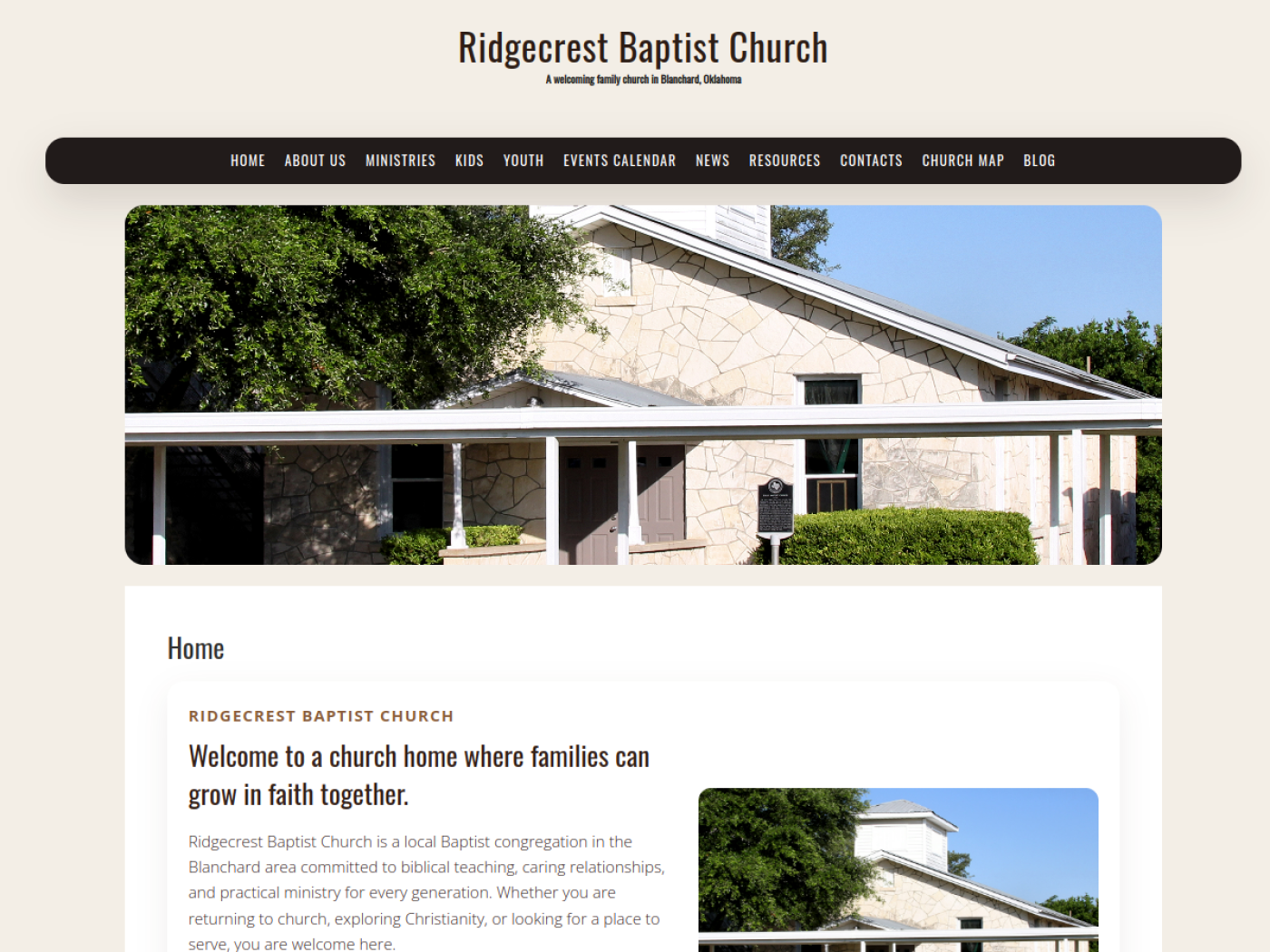
If you are already on the homepage, the quickest path is usually: homepage, main menu, News. If you are already on the News page, congratulations, you have won a round of basic navigation. Now read the actual update.
How to scan an update quickly
Most people do not need to read every line of a church update with a scholar’s commitment. They need the facts. Look for the parts that change what you do next.
- Date – When does it happen, and is there a deadline before it?
- Topic – What is this about in one sentence?
- Audience – Who actually needs this: everyone, parents, students, volunteers, or a specific class?
- Action needed – Do you need to RSVP, bring something, sign up, show up early, or do nothing at all?
A practical scan takes less than a minute if you resist the urge to read every word twice. Start with the headline, then the first paragraph, then the date and contact details. If the post does not answer those four questions, keep reading until it does or until it proves it does not know what it is doing.
Here is the working rule: if an update does not tell you when, who, and what next, it is incomplete from a visitor’s point of view. That is not your failure. It is the post’s.
Fast-read checklist
- Read the title.
- Find the date.
- Check who the update is for.
- Look for a deadline or response request.
- Put the event or reminder into your calendar if it matters to you.
Common types of posts you will see
The News page usually carries the same kinds of items, because churches are not that mysterious when they finally decide to write things down.
Service reminders
These are the simplest posts and the easiest to ignore. Do not. They often confirm service times, special schedules, or location changes. If the church is adjusting a service or class, this is where the update usually lands first.
Special events
Events can include fellowship meals, student activities, children’s ministry gatherings, church-wide celebrations, and seasonal services. If there is a deadline, ticket, RSVP, or sign-up, it belongs here. That is the part people forget and then pretend was never mentioned.
Ministry highlights
Sometimes the News page highlights what a ministry is doing, who it serves, or how to participate. This is useful because it tells you whether the update is just informational or actually inviting you to act. Most people confuse those two. They should not.
Prayer needs and follow-up notes
Not every update is about logistics. Some posts will point readers toward prayer, care, or encouragement. Those updates are different: read them carefully, respond appropriately, and do not treat them like event spam. That is not a good look.
How to respond to what you read
The whole point of reading a church update is to do something useful with it. Otherwise you are just collecting information the way some people collect receipts.
- RSVP when asked. If a post asks for a response, give one. That is not optional decor. It is part of the plan.
- Bring what the post names. If the update says bring food, supplies, forms, or a Bible, bring those things instead of improvising your way into inconvenience.
- Ask questions early. If the details are unclear, use the contact page before the event. Confusion gets cheaper when it is solved early.
- Share it with the right person. If the update affects your family, students, or ministry group, forward it before it disappears into the swamp of unread messages.
When in doubt, use the Contacts page or the direct contact form. Both land you in the same place emotionally: someone on the church side can answer the question instead of making you guess.
If the update affects where to park, which entrance to use, or when to arrive, check the Church Map as well. A news item can tell you the plan, but a map tells you where to physically go. Oddly enough, that still matters.
Planning ahead: turn the news item into a calendar action
Reading an update is only half the job. The other half is making sure your future self does not quietly sabotage you. If something matters, put it on your personal calendar the same day you read it.
That can be as simple as copying the date, time, location, and one-line purpose into your phone calendar. If you use Google Calendar, its help page for creating events is a decent place to start: Google Calendar’s event creation help. The mechanics are not impressive, but neither is forgetting something you already meant to attend.
Apple users can do the same thing in the iPhone Calendar app, which has its own step-by-step help page: Apple’s Calendar instructions for iPhone. Same principle. Put the thing in the calendar before the week eats it.
If you live in Outlook, the official calendar overview is here: Microsoft’s Outlook Calendar overview. No mystery, no drama, and no excuse for “I meant to go.”
Use reminders for anything that has a deadline or requires preparation. If an event says “bring food,” “arrive early,” or “sign up by Thursday,” that is not optional trivia. It is the actual task.
How to stay in the loop between Sunday services
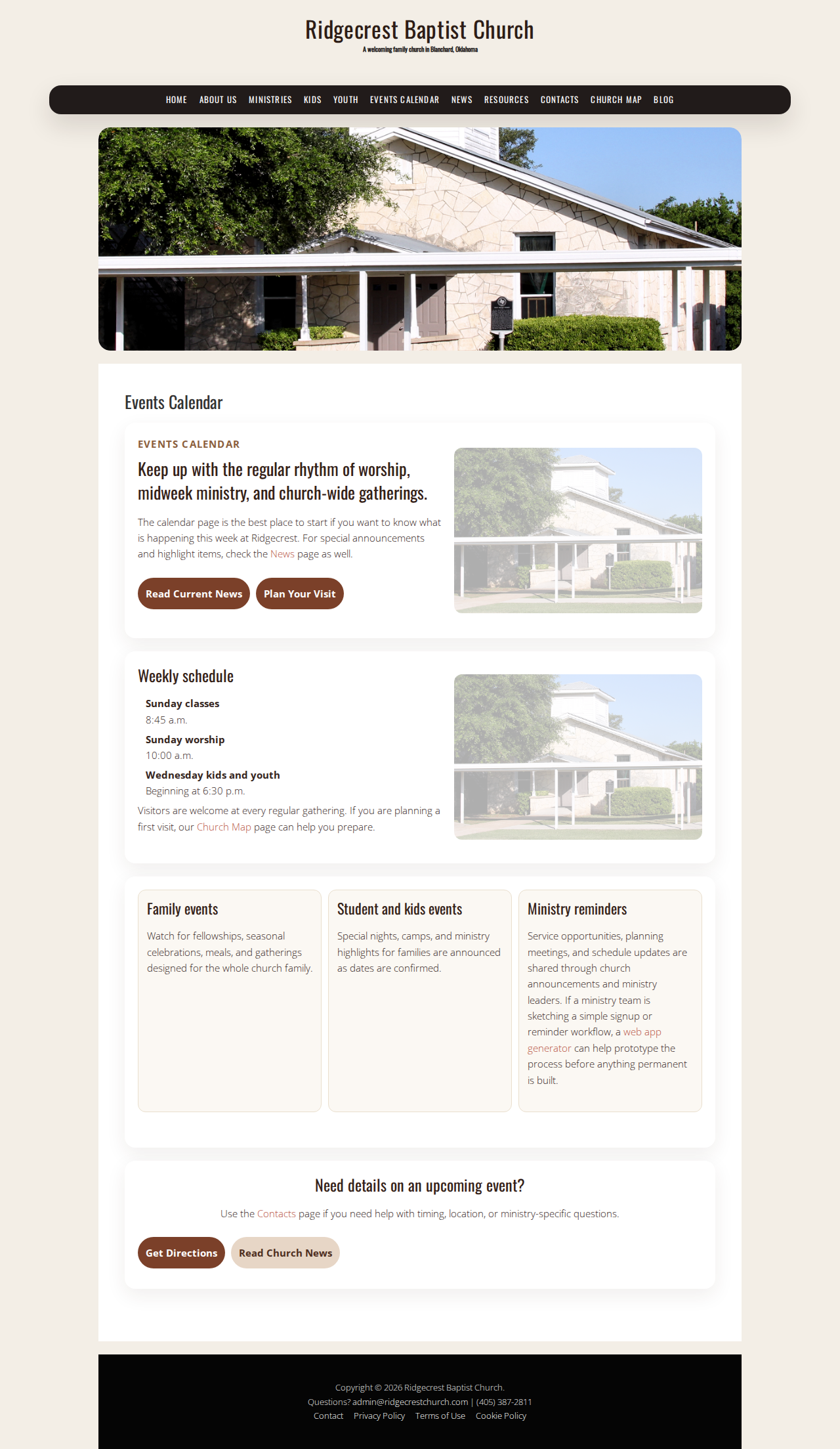
Do not wait until Sunday to discover the thing you were supposed to know on Tuesday. The News page and the Events Calendar work together. One explains what is happening. The other helps you see when it happens.
- Check News for announcements and changes.
- Check Events Calendar for dates and upcoming gatherings.
- Check Home if you want the main site entry point again because you clicked yourself into confusion.
A decent habit is to review News once during the week and again before the weekend. That is enough to catch most updates without treating the church website like a full-time job.
Quick FAQ
What if I missed it?
Start with the News post and the Events Calendar. If the update included a deadline or sign-up, use the contact page immediately to ask whether anything can still be done. Do not assume silence means the issue disappeared. It usually means you have not checked the right page yet.
Where do I find the details?
Use the News page first. If the post is brief, the next stop is the Events Calendar, then Contacts or Church Map if location or timing matters. If the information still feels thin after that, the problem is not you. The update needs more detail.
Who do I contact?
Use Contacts for church staff information and contact.php if you want the direct contact path. If the matter is location-specific, add the Church Map to the mix so you are not asking a question that the map already answered.
Next steps
If you only remember three things, make them these: read the News page, check the Events Calendar, and contact the church when the update affects you directly. That is enough to stay informed without pretending every announcement will somehow reach you by psychic means.
Start with the News page, then move to the Events Calendar for dates, and use Contacts or the Church Map when you need a person, a place, or both. If you want more background on the church itself, the About Us page is there too.
That is the whole trick. Read the update, identify the action, and move it into your calendar before it evaporates. Basic process. Less drama.